 |  |
|
| |
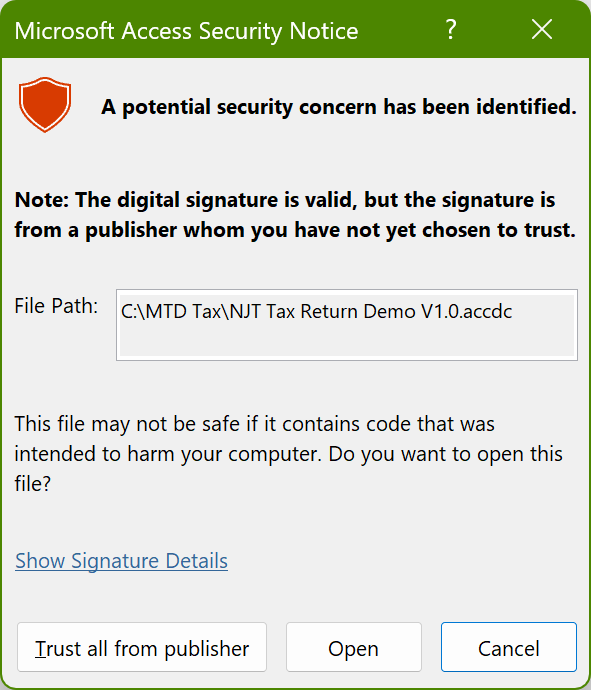 Download the Signed Package file (via the button below), then (move or save) it to the folder you have just created.
Introduction: Files created by this software are organised using a pre-set folder structure. Sub folders are created automatically within the folder where the workbook resides. It is recommended that the ‘Tax Return Manager’ software is stored in a specific folder. For example, "C:\My Tax Returns".
Database Folder: When you first use the software, a ‘Back End’ database is created within the sub folder ‘(Database)’. You may then move this database to a different location. For example, where you wish to store the database in a folder on a Server.
Import Folder: When you Import a V'AT Return' or 'Quarterly Update' from, for example an Excel workbook, the routine first searches in the sub folder '(Import)'. This may be a convenient location to store the files. However, For each Taxpayer, the file folder location is saved automatically after each import, therefore you can essentially store the files in any accessible location. This folder location then becomes the default for future imports.
Receipt Files: When a draft or finalised VAT Return or an Income Tax ‘Quarterly Update’ is saved as a PDF file it is stored, by default, to the sub folders ‘(VAT Documents)’or ‘(IT Documents)’ respectively. However, for each Taxpayer, the folder location can be changed, essentially allowing you to store the PDF Receipts in any accessible location. Once changed, the new folder location becomes the default for that Taxpayer.
VAT Return Evidence Files: During each VAT Return submission, copies of the full submission and HMRC response are saved to the sub folder "Evidence". These files are stored in Text and JSON format and can be viewed using a 'Text' editor such as NotePad or WordPad.
Archive Folder: After you have transferred to a new release of the software you may wish to move your old version into the '(Archive)' folder to avoid confusion as to which is your latest software version. In practice, as all ‘Business Critical’ data is stored within the separate database, old versions can be deleted.
Backup History Folder (Stores 'Back End' Database Backups): You can backup the ‘Back End’ database to a sub folder ‘(Backup History)’ located within the current database folder.
Logs and Bin Folders: The sub folders "(Bin)" and "(Logs)" are used to store technical log files created by the software. These log files may assist in the resolution of technical issues that may occur during the use of the software.